


Plantronics MDA220 USB Headset Switch
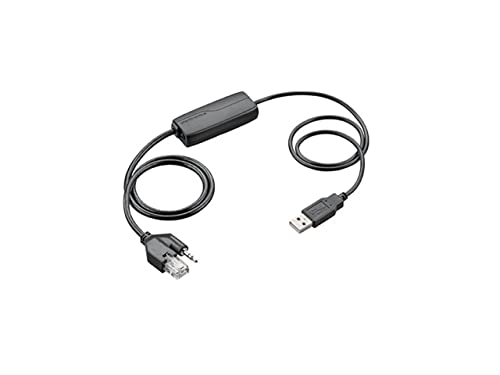
The Plantronics MDA220 is a USB switch designed for professionals who use both PC-based softphone applications and traditional desk phones throughout the day. Instead of managing two separate headsets or manually unplugging cables, the MDA220 lets you switch audio sources with a single button press.
We built this device for contact center agents, IT support teams, and office workers who need flexibility without the friction of cable swapping. When a call comes in on your desk phone while you're on a WebEx session, press the switch and your headset immediately routes to the correct line. The MDA220 handles the handshake so you can focus on the conversation.
Compatible with most Plantronics H-series and select wireless headsets, the MDA220 integrates into existing UC environments without requiring driver installations. It draws power via USB, so there's no separate power brick cluttering your workspace.
- One-touch switching between PC softphone and desk phone audio
- Compatible with Plantronics H-series corded headsets and select wireless models
- USB powered — no external adapter required
- Plug-and-play installation with no driver downloads
- Compact footprint: 3.5 × 3.5 × 1.1 inches
How the MDA220 Switching Mechanism Works
The MDA220 uses a manual push-button interface to toggle between two audio inputs: your computer’s USB port and your desk phone’s headset jack. When you press the button, the switch sends a disconnect signal to the inactive source and opens the circuit to the active one.
Internally, the device routes audio through a relay that prioritizes the selected input without introducing noticeable latency. You’ll hear the transition in under 200 milliseconds, which feels instantaneous during live calls. The LED on the front panel changes color to confirm which source is live — green for PC, amber for desk phone.
Headset Compatibility and Connection Options
The MDA220 works with any Plantronics headset that terminates in a quick-disconnect (QD) connector, including the EncorePro, Supra Plus, and TriStar families. For desk phone connectivity, we include both 3.5mm and 2.5mm adapter cables in the box, covering the two most common jack sizes on enterprise handsets.
If your desk phone uses a proprietary connector — common on older Avaya, Nortel, or Mitel models — you’ll need a separate bottom cable matched to that system. Our adapter cable catalog includes those model-specific cables, and they snap directly into the MDA220’s desk phone port.
Installation Steps and Workspace Setup
Plug the MDA220’s USB cable into an available port on your computer — Windows and macOS will recognize it as a standard audio device without prompting for drivers. Connect your Plantronics headset’s QD plug to the switch’s headset port, which is clearly labeled on the side panel.
For the desk phone connection, choose either the 3.5mm or 2.5mm cable depending on your handset’s jack size, then insert it into the MDA220’s phone port. Route the other end to your desk phone’s headset jack — typically found on the left side or back panel of the handset.
Audio Accessories to Enhance Your Setup



What people are saying
Common Questions About the MDA220 Switch
The MDA220 is designed specifically for Plantronics headsets with quick-disconnect (QD) connectors. While some third-party headsets use compatible QD standards, we can only guarantee full functionality and warranty coverage with Plantronics-branded models. If you have a different brand headset, check whether it uses the industry-standard QD pinout before connecting.
Yes, as long as your mobile phone has a 3.5mm headset jack. Connect the included 3.5mm cable from the MDA220's phone port to your mobile device, and you can switch between PC softphone calls and mobile calls using the same button. This setup works well for users who rely on a personal cell phone for certain business calls.
The MDA220 only routes audio signals — it does not supply charging power to wireless headsets. If you're using a wireless model, the headset will continue to charge via its dedicated base station. The MDA220 connects to the base station's headset port to enable source switching while preserving the wireless functionality.
No drivers or software are required. The MDA220 uses standard USB audio protocols, so Windows, macOS, and most Linux distributions recognize it immediately as a plug-and-play audio device. Simply connect the USB cable and both audio sources, then press the button to switch.
The LED indicator on the front of the switch changes color based on the active source. Green indicates your PC softphone is live, and amber means the desk phone connection is active. This visual cue lets you confirm the correct line at a glance without needing to test audio first.
Yes, the MDA220 is compatible with all major unified communications platforms including Microsoft Teams, Zoom, Cisco Webex, RingCentral, and others. Since it operates as a standard USB audio device, any softphone application will recognize it as a valid input and output option in the audio settings menu.
Pressing the button while on a call will immediately disconnect the current audio source and route to the other line. You'll hear a brief click as the relay toggles, and the active call will drop if you don't have an open session on the destination source. Most users press the button between calls to avoid mid-conversation interruptions.