

Plantronics APV-63 Electronic Hookswitch Cable
The Plantronics APV-63 is an electronic hookswitch (EHS) cable designed to enable remote call control between your compatible wireless headset and select Avaya ECS phone models. When connected, the APV-63 allows you to answer and end calls directly from your headset, eliminating the need to lift the handset or press buttons on your desk phone.
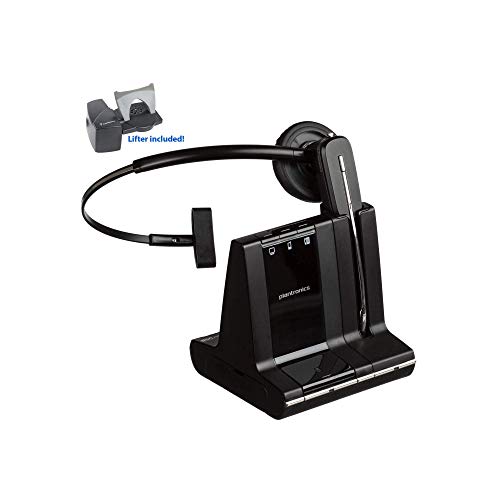
Our APV-63 delivers plug-and-play functionality for busy professionals who want streamlined communication. The cable integrates with Plantronics CS and Savi series wireless headsets, giving you the freedom to roam up to 350 feet from your desk while maintaining full call control. Whether you're in back-to-back meetings or handling high call volumes, the APV-63 keeps you connected without tethering you to your phone base.
- Compatible with Avaya ECS phones (1408, 1416, 9404, 9408, 9504, 9508 models)
- Works with Plantronics CS500 and Savi W700 series wireless headsets
- Enables remote answer/end call control directly from headset
- Plug-and-play installation with no software required
- Eliminates handset lifter accessories for cleaner desk setup
Compatibility & Phone System Requirements
The APV-63 is engineered specifically for Avaya ECS series desk phones, including models 1408, 1416, 9404, 9408, 9504, and 9508. Before ordering, confirm your phone model number by checking the label on the back or underside of your handset.
On the headset side, the APV-63 connects to Plantronics CS500 series models (CS510, CS520, CS530, CS540) and Savi W700 series models (W710, W720, W730, W740, W745). The cable plugs into the headset base unit’s AUX or EHS port, creating a digital link that mirrors your phone’s hook-switch state. If you’re upgrading from a mechanical handset lifter, you’ll appreciate the cleaner setup and more reliable call signaling that electronic hookswitch technology provides.
Installation & Setup Process
Installing the Plantronics APV-63 takes less than two minutes with no IT support required. First, locate the AUX or EHS port on your Plantronics headset base — it’s typically on the back panel next to the power input. Insert the cable’s smaller connector into that port until you hear a click.
Next, connect the RJ-9 end of the cable to the headset port on your Avaya phone (the same jack your handset normally occupies). Your headset base will automatically detect the EHS connection and configure itself. Test the setup by pressing the call control button on your headset; your phone should go off-hook and present a dial tone. No firmware updates or configuration menus are necessary — the APV-63 communicates using Avaya’s native EHS protocol.
Remote Call Control Features
Once connected, the APV-63 enables hands-free call management from anywhere within your headset’s wireless range. Press the headset’s multifunction button once to answer an incoming call, and press again to end the active call. The cable transmits these commands to your phone’s electronic hookswitch circuit, which responds exactly as if you had physically lifted or replaced the handset.
Desk Phone Synchronization
Your Avaya phone’s display and indicators stay synchronized with your headset activity. When you answer a call remotely, the phone’s in-use LED illuminates and the display shows call duration. If a colleague walks by your desk, they’ll see at a glance that you’re on an active call even though you’re not physically present. This synchronization prevents interruptions and maintains professional workspace etiquette in shared office environments.
Compatible Plantronics Cables & Adapters




What people are saying
Common Questions About the APV-63 Cable
The APV-63 is compatible with Avaya ECS series phones including models 1408, 1416, 9404, 9408, 9504, and 9508. Check the model number label on the back or bottom of your desk phone to confirm compatibility. If you have a different Avaya model or another phone brand, contact our support team for the correct EHS cable recommendation.
No software installation is required. The APV-63 uses Avaya's native electronic hookswitch protocol, which your phone and Plantronics headset base recognize automatically. Simply connect the cable to both devices and your headset will immediately gain remote call control. No firmware updates, configuration menus, or IT support are necessary for standard operation.
The APV-63 is designed exclusively for Plantronics CS500 and Savi W700 series wireless headsets. It will not function with headsets from other manufacturers due to proprietary signaling protocols. If you're using a non-Plantronics headset, check with that manufacturer for compatible EHS cables for your Avaya phone model.
The APV-63 creates a direct electronic connection between your headset base and phone, transmitting hookswitch commands digitally. A handset lifter like the HL10 uses a mechanical arm to physically lift your phone's handset. Electronic hookswitch cables offer faster response, no moving parts to maintain, and cleaner desk aesthetics. Lifters are only necessary when your phone model doesn't support EHS functionality.
The cable measures approximately 10 feet from end to end, providing enough length for most desk configurations where the phone and headset base sit on the same surface. If your base unit is mounted elsewhere or you need extra routing length, plan your cable path before installation to ensure the cable reaches comfortably without tension on the connectors.
The APV-63 handles only call control signals and does not carry voice audio. Your call audio still routes through your headset's wireless DECT connection to the base unit, then through the base's telephone interface cable to your phone. The EHS cable purely enables remote answer and hangup commands, so it has no impact on voice clarity or sound quality during conversations.
We back the APV-63 with a one-year limited warranty covering defects in materials and workmanship. The warranty does not cover damage from improper installation, liquid exposure, or physical abuse such as cable cuts or crushed connectors. If you experience a manufacturing defect within the warranty period, contact our support team for a replacement at no charge.